 براير ناو | الصلاة الأن
 العربية

 73
73 
PRAYER NOW • WEAR OS
طريقة ربط ساعة Wear OS بتطبيق براير ناو
تابع الصلاة القادمة ووقتها والعد التنازلي مباشرة من معصمك باستخدام تطبيق براير ناو على ساعات Wear OS. لا يستغرق الإعداد سوى دقائق قليلة، ويظل الهاتف هو المصدر الأساسي للموقع وطريقة الحساب ومواقيت الصلاة.
الطريقة المختصرة: ثبّت براير ناو على هاتف Android وعلى ساعة Wear OS، وافتح التطبيق على الساعة، ثم انتقل في الهاتف إلى براير ناو > الإعدادات العامة > ربط الساعة الذكية > ساعات Wear OS، فعّل الربط واضغط مزامنة الآن.
ما الساعات المدعومة؟
يدعم براير ناو الساعات التي تعمل بنظام Wear OS وتحتوي على متجر Google Play عندما يعرض المتجر الساعة كجهاز متوافق. ومن أشهر العائلات المتوافقة عادةً:
- Google Pixel Watch.
- Samsung Galaxy Watch 4 والإصدارات الأحدث التي تعمل بنظام Wear OS.
- OnePlus Watch 2 والإصدارات الأحدث التي تعمل بنظام Wear OS.
- Xiaomi Watch 2 وWatch 2 Pro.
- ساعات TicWatch الحديثة التي تعمل بنظام Wear OS.
قد يختلف التوافق حسب الموديل والدولة وإصدار النظام. للتأكد النهائي، افتح صفحة براير ناو في Google Play وتحقق من ظهور ساعتك ضمن الأجهزة المتاحة للتثبيت.
إذا كنت تستخدم ساعة هواوي، راجع شرح ربط براير ناو مع ساعة هواوي.
قبل البدء
- اربط الساعة بهاتف Android وتأكد من تشغيل Bluetooth أو Wi-Fi.
- حدّث تطبيق براير ناو على الهاتف إلى أحدث إصدار.
- ثبّت براير ناو على الساعة من Google Play.
- اجعل الهاتف والساعة قريبين أثناء المزامنة الأولى.
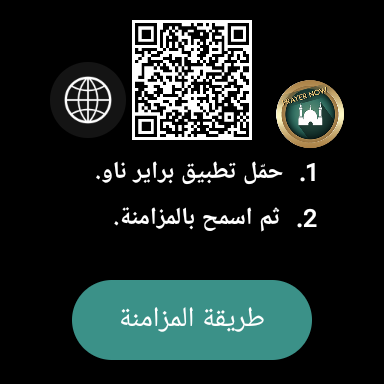
الخطوة 1: تثبيت براير ناو وفتحه على الساعة
افتح Google Play على الساعة، وابحث عن Prayer Now ثم ثبّت التطبيق. ويمكنك أيضًا فتح صفحة براير ناو على الهاتف واختيار تثبيته على جهاز متوافق آخر.
عند فتح تطبيق الساعة لأول مرة ستظهر شاشة إعداد قصيرة. اسمح بإشعارات التطبيق وصلاحية التنبيهات المطلوبة حتى تعمل تذكيرات الصلاة بصورة صحيحة.
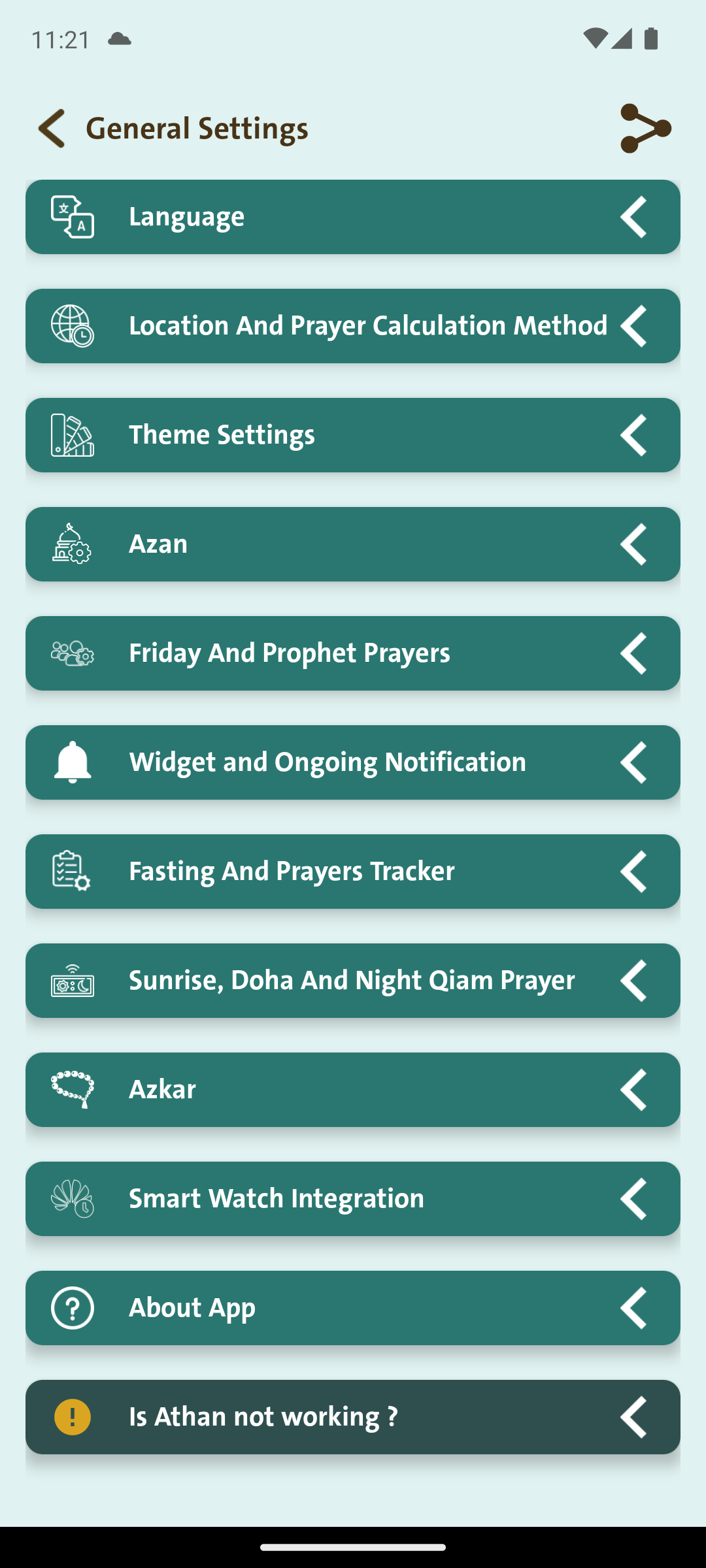
الخطوة 2: فتح ربط الساعة الذكية على الهاتف
من تطبيق براير ناو على الهاتف، افتح الإعدادات العامة، ثم انتقل إلى ربط الساعة الذكية وافتح القسم.
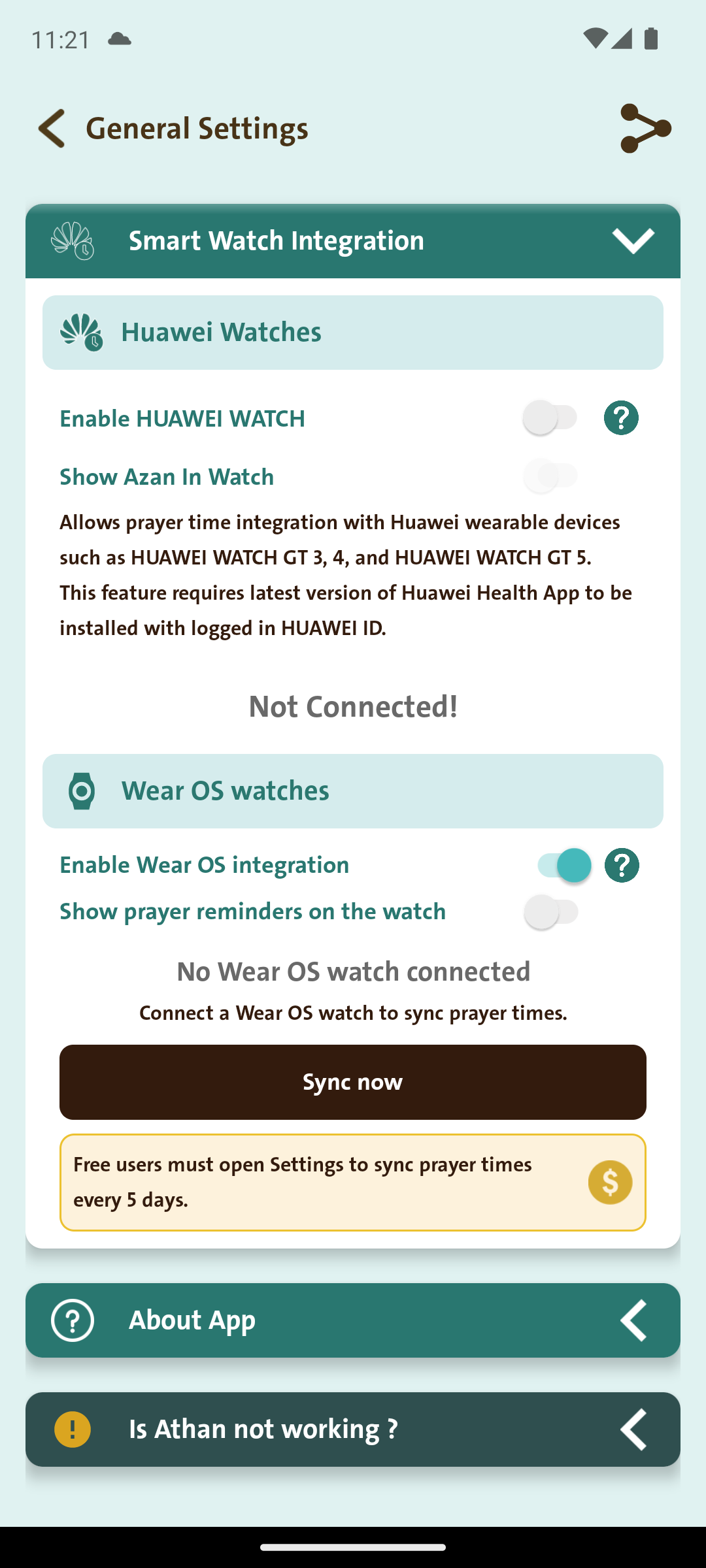
الخطوة 3: تفعيل Wear OS وإجراء المزامنة
داخل قسم ساعات Wear OS:
- فعّل ربط Wear OS.
- فعّل تذكيرات الصلاة على الساعة إذا رغبت.
- انتظر حتى تظهر الساعة المتصلة.
- اضغط مزامنة الآن.
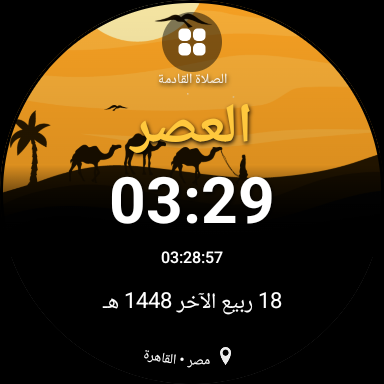
الخطوة 4: التأكد من نجاح الربط
بعد نجاح المزامنة تختفي شاشة الإعداد وتظهر شاشة الصلاة القادمة على الساعة. ستعرض الساعة اسم الصلاة ووقتها والعد التنازلي والتاريخ الهجري والمدينة التي تمت مزامنتها، دون إنشاء مواقيت مختلفة عن الهاتف.
متى أحتاج إلى المزامنة مرة أخرى؟
- يحصل المستخدم المجاني على مواقيت تصل إلى 5 أيام، لذلك يجب فتح قسم الربط وإعادة المزامنة قبل انتهاء المدة.
- يحصل مستخدم Premium على مواقيت تصل إلى 90 يومًا.
- أعد المزامنة بعد تغيير الموقع أو طريقة الحساب أو تعديلات مواقيت الصلاة أو تنسيق الوقت على الهاتف.
إذا لم تظهر الساعة
- تأكد من تثبيت براير ناو وفتحه على الهاتف والساعة.
- تأكد من اتصال الساعة بالهاتف نفسه عبر Bluetooth أو Wi-Fi.
- حدّث براير ناو وخدمات Google Play ونظام الساعة.
- ارجع إلى ربط الساعة الذكية، وأوقف ربط Wear OS ثم فعّله مرة واحدة، واضغط مزامنة الآن.
- افتح تطبيق الساعة واترك شاشة الإعداد ظاهرة أثناء المزامنة الأولى.
يعتمد تطبيق الساعة على مواقيت الصلاة القادمة من الهاتف بدل حساب جدول منفصل، وبذلك تظل المواعيد متطابقة على الجهازين مع تقليل استهلاك بطارية الساعة.
مواقيت الصلاة الأقرب إليك على الهاتف والساعة.
 نعم
نعم لا
لا